
Appearance
Migration from cPanel and other panels
Administration → Migration (marked beta) imports a hosting account from cPanel, HestiaCP, CyberPanel or aaPanel: the home directory, databases, mailboxes, DNS zones and cron jobs. Only administrators can run it.
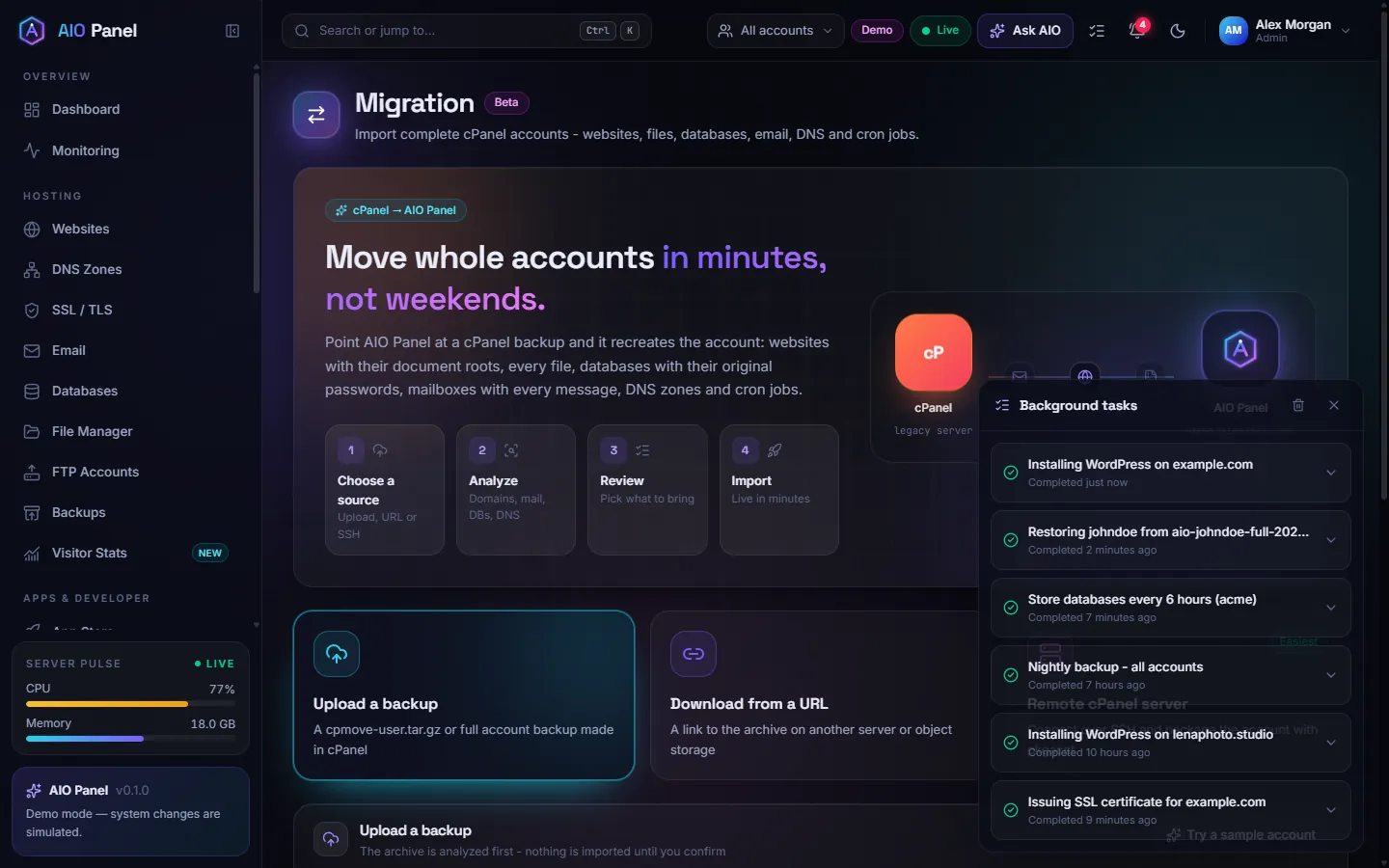
How do I import an account?
- Choose a source:
- Sample — a small built-in backup, useful for trying the screens.
- Upload — a cPanel backup archive (
.tar.gz). - URL — an address the panel can download.
- Remote — SSH to the cPanel server. The password or key is used for this job and then deleted.
- Click Analyze. The panel lists websites, databases, mailboxes and conflicts (for example a username that already exists).
- On Review, untick anything you do not want, pick the package and the owner, and fix conflicts.
- Start the import. It runs as a background task. The report at the end lists what was created and any warnings.
If one database cannot be created (the package limit, for example), the others still get their users. The warning is in the report.
What does the importer adjust on the way?
- Paths. Cron jobs that call
/opt/cpanel/ea-phpXX/.../phpor/usr/local/bin/phpuse the panel's PHP; the home directory is rewritten when the username changes. - Apps deployed into public_html. A Laravel-style site whose
.htaccessforwards every request intopublic/is served frompublic/directly, because nginx does not read.htaccess. The review and the report say so. - Wildcard subdomains. A
*.example.comsubdomain becomes the wildcard setting of theexample.comwebsite (Websites → Domains). - Certificates. With SSL certificates selected, the certificate cPanel served for each website is installed when it is still valid for two weeks; the rest are re-issued by AutoSSL once DNS points to the new server.
- Database users. Every database user is prefixed with the account name, as everywhere in the panel. cPanel's implicit user named like the account becomes
account_account; the report lists every rename, and WordPress configs are updated automatically. - cPanel's default address. On cPanel the catch-all of a domain usually points at the account itself, so mail for unknown addresses went to the account's system mailbox, which the panel does not have. The importer creates a mailbox named after the new account at the main domain (for example
shop@oldshop.com) once per account, makes it the catch-all of every such domain and copies the old system mailbox into it. It gets a random password: set one under Email before using it. A catch-all that pointed at an address is kept as it was;:fail:needs none (unknown addresses are rejected). - Folders archived through a symbolic link (
public_html/apppointing at/home/user/app/public) are skipped by tar and noted in the task log; their files are restored from the link target. - WordPress sites found in the imported websites join the WordPress manager, so they get update checks, the health score and vulnerability alerts like sites installed through the panel.
WordPress sites that used a Redis object cache on cPanel keep a wp-content/object-cache.php that logs in with a Redis user of the old server. Remove it (or deactivate the Redis plugin) and switch on the panel's own object cache under WordPress → site → Cache instead.
After the import
An import that finishes without an error is not yet a website that works. Migration → After the import checks every imported account, by itself when an import completes and again whenever you press Check. All accounts lists every hosting account, for imports whose record was deleted and accounts that arrived another way:
| Check | What it tells you |
|---|---|
| DNS | Whether each domain points to this server yet. Until it does, visitors still reach the old one. A domain behind Cloudflare is shown as such. |
| Website answers | The web server on this machine is asked for the start page directly, whatever the DNS says - so you see a server error or a crashed application before you switch the DNS. |
| Certificate | Whether the website has one. AutoSSL issues it once the DNS points here. |
| .htaccess | On Apache: a PHP handler line of the old server (AddHandler application/x-httpd-ea-php74) that would break every page. |
| SPF, DKIM, DMARC and MX of each mail domain. |
Left behind by the old server lists what the old control panel and its plugins left in the home directory, with sizes: the panel's own data (.cpanel, .softaculous, .trash), an error_log in every folder, copies of configuration files that hold a database password, account archives, database dumps and the backup folders of plugins such as UpdraftPlus. Remove what is safe deletes the old panel's data, its error logs and the configuration copies the import itself made. Archives, dumps and backups are only listed: whether they are still needed is for the owner to say.
What is not imported?
Mailing lists, calendars, and anything cPanel stores outside the account backup. DNSSEC is not copied; sign the zone again under DNS after the import. Check the new website and send a test email before you change the domain's nameservers.
Plesk, DirectAdmin, HestiaCP, CyberPanel, aaPanel and others
Under Other control panels, pick the panel and upload its backup. The analysis, review and import steps are the same as for cPanel. The analysis lists anything the backup does not contain, so you can check it before you import.
| Panel | Upload | Imported |
|---|---|---|
| Plesk (Obsidian and Onyx) | A whole-subscription backup from Backup Manager (the .tar, or the .tar inside the downloaded .zip), also found in /var/lib/psa/dumps | Domains, subdomains and aliases with their files, MySQL databases with their users and passwords, mailboxes with their messages, passwords, aliases, forwarders and catch-all, DNS zones, scheduled tasks |
| DirectAdmin | The user.<creator>.<user>.tar.gz file from Admin Backup/Transfer, Reseller Backups or the user's Site Backup, found in /home/<creator>/admin_backups or /home/<user>/backups | Domains, subdomains and pointers with their files, MySQL databases with their users and passwords, mailboxes with their messages and passwords, forwarders, catch-all, DNS zones, cron jobs |
| HestiaCP (and VestaCP) | The <user>.<date>.tar file from v-backup-user or Backups, found in /backup | Web domains and their files, other home folders, MySQL databases with their users and passwords, mail domains, mailboxes with their messages and passwords, aliases, forwarders and catch-all addresses, DNS zones, cron jobs |
| CyberPanel | The backup-<domain>-<date>.tar.gz file from Backup → Create Backup, found in /home/<domain>/backup | The website, its child domains and aliases, files, databases with their users and passwords, mailboxes with their passwords, the messages of the main domain, DNS records |
| aaPanel | One web_<site>_<date>.tar.gz file, or a .tar/.tar.gz holding the web_ and db_ files from /www/backup/site and /www/backup/database | Each site (named after its domain) and its files, and each database dump. A database user and its password are read from the site's wp-config.php or .env. |
What these backups cannot bring over:
- Plesk: PostgreSQL databases, SSL certificates, auto-replies and the system user's password. Mail and database passwords that Plesk stored encrypted (not plain or crypt) need a new password.
- DirectAdmin: SSL certificates, FTP accounts, auto-responders and the login password.
- HestiaCP: PostgreSQL databases, autoresponders, SSL certificates and FTP accounts. Mailboxes hashed with ARGON2ID need a new password.
- CyberPanel: cron jobs, email forwarders and catch-all addresses, and the messages of domains other than the main one.
- aaPanel: email, DNS zones, cron jobs, extra domains bound to a site, rewrite rules, the run directory and PHP versions. If no
wp-config.phpor.envnames a database user, a user with the database's name is created with a new password. Update your application's settings with it.
Symbolic links and hard links inside a backup are not restored.
Virtualmin, ISPConfig, CloudPanel, Enhance and other panels
These are under Other control panels too. What they bring differs, because the backups differ:
| Panel | Upload | Imported |
|---|---|---|
| Virtualmin | A virtual-server backup from Backup and Restore → Backup Virtual Servers, all features, format "Single archive file" (<domain>.tar.gz). Include the sub-servers to bring them along. | The virtual server, its sub-servers and alias domains with their files, MySQL databases with their user and password, the DNS zone, and mailboxes with their messages. A mailbox whose password the new server cannot read gets a new one. |
| ISPConfig | The files of /var/backup/site<ID>: web<ID>_<date>.tar.gz and db_<name>_<date>.sql.gz, one of them or a .tar.gz of the folder. Set the website's backup format to tar.gz. | The website files (the newest backup) and its databases. The domain is read from the certificate in the backup; a website without one is uploaded in an archive named after its domain (example.com.tar.gz). |
| CloudPanel | The home directory of the site user: tar czf site.tar.gz -C /home/<site-user> htdocs backups, after clpctl db:export or a scheduled database backup. | Every website under htdocs/<domain> and the newest dump of every database under backups/databases. |
| Enhance and any other panel | A .tar.gz with one folder per website, named after its domain (example.com/), and database dumps next to them as <database>.sql or .sql.gz. Or one website on its own, in an archive named after its domain. | The website files and the databases. A public_html, httpdocs, htdocs, web, www or (for frameworks) public folder inside a website folder becomes its document root. |
For ISPConfig, CloudPanel and the generic archive, database users and passwords are read from WordPress (wp-config.php) and .env settings when they are there; a database nobody claims gets a user of its own name and a new password. These three carry no email, DNS zones, cron jobs or certificates: set them up after the import, and run the check under After the import.